Git and Branching
From your first commit to team workflows, resolving conflicts, and choosing the right branch model
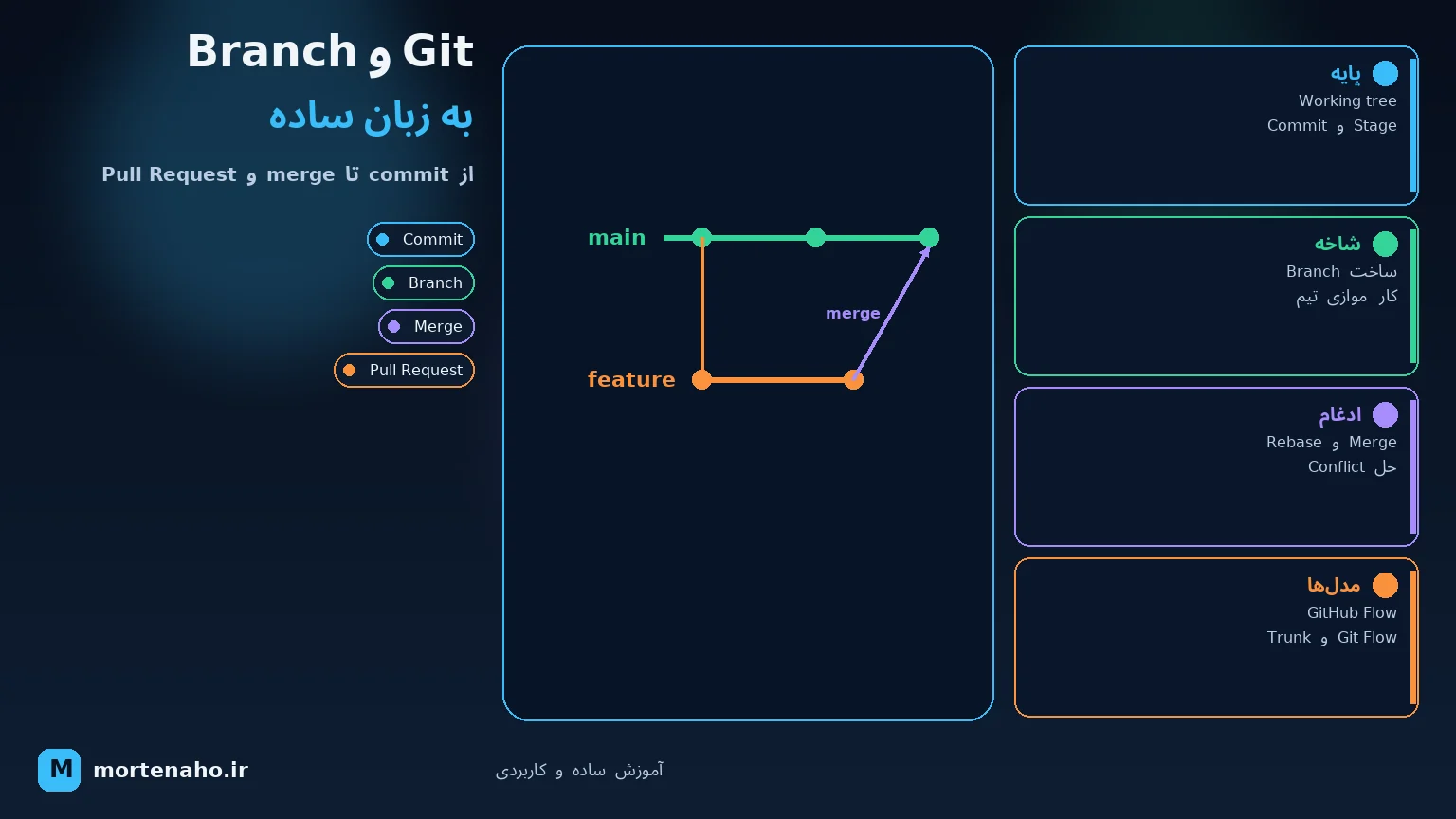
What you'll learn
With a real project and short commands, you'll learn how Git tracks file changes, how to create branches, merge work, and collaborate on a team without breaking each other's code.
At the end we compare GitHub Flow, Git Flow, and Trunk-Based Development so you can pick the model that fits each project.
1. What is Git?
Git is a version control system. It records changes to project files so you know who changed what, when, and why.
Think of Git like a video game save system. Each commit is a save point. If you make a mistake later, you can review history, compare changes, or roll back to a good version.
What problem does Git solve?
- No more files named
project-final-final-2.zip. - Full history and a reason for every change.
- Several people can work on different parts at the same time.
- You can build new features without touching the stable version.
- When something breaks, you can find or undo the bad change.
2. Four important parts of Git
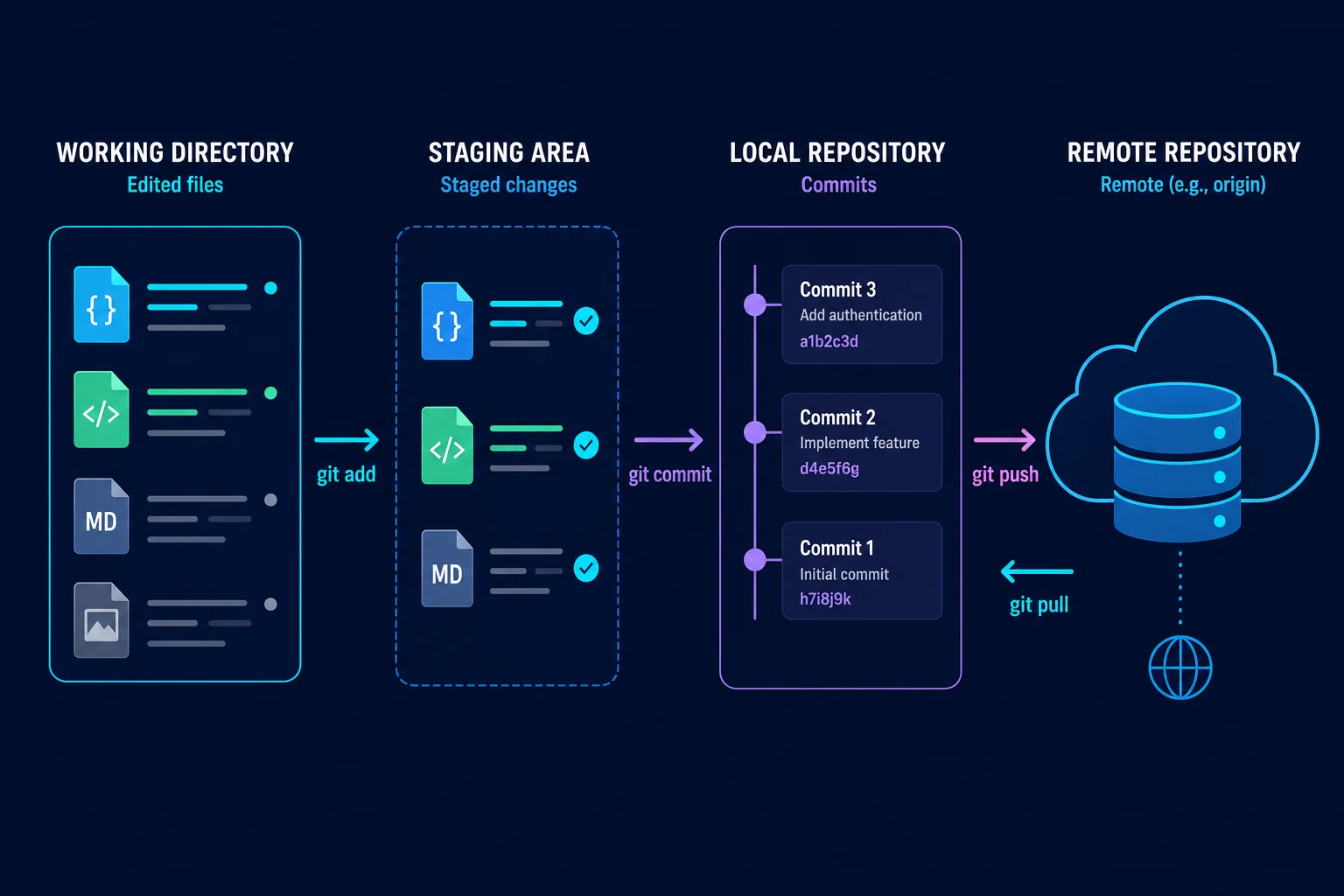
| Area | Plain meaning |
|---|---|
| Working Directory | Files you see and edit on your system right now. |
| Staging Area | Changes you selected for the next commit. |
| Local Repository | Commit history stored on your machine. |
| Remote Repository | The online copy on GitHub, GitLab, or a similar service. |
Four main commands on this path:
git status          # file status
git add Program.cs  # move file to Staging
git commit -m "Add health endpoint"
git push            # send commits to Remote
What is stored inside the .git folder?
After running git init, a hidden folder named .git is created. That folder is the repository: commit history, branches, tags, the Staging Area, and local settings live there. The visible project files are only the Working Directory.
In a normal repository .git is a directory; in a linked worktree or some submodules it may be a text file pointing to the real Git directory. git rev-parse --git-dir always reports the correct path.
.git/
├── HEAD
├── config
├── index
├── objects/
├── refs/
│   ├── heads/
│   ├── remotes/
│   └── tags/
├── logs/
├── hooks/
├── FETCH_HEAD
├── ORIG_HEAD
└── packed-refs.git by hand. Most of them use internal or binary formats. Use Git commands to inspect and change repository data.
HEAD — where are we now?
HEAD usually points to the current branch. If you're on main, its conceptual content looks like this:
ref: refs/heads/mainIn detached HEAD state, this file holds a commit ID directly. To see the state, don't read the file manually; these commands are clearer:
git branch --show-current
git rev-parse HEAD
git status
config — settings for this repository
Remote URLs, tracking branch settings, and local options live in .git/config. Settings in this file apply only to this project:
git config --local --list
git remote -v
git config --show-origin --get user.email
index — the Staging Area
The file .git/index is a snapshot of files prepared for the next commit. It is binary and should not be opened in an editor:
git status
git diff --staged
git ls-files --stage
objects — Git's real database
Git stores data as content-addressed objects:
| Object | What it stores |
|---|---|
| blob | Contents of a file, without the filename |
| tree | Filenames, folders, and how they link to blobs |
| commit | Root tree, parent, author, time, and commit message |
| tag | Annotated tag metadata and a pointer to another object |
A commit ID is not random; it is derived from the object's content. Change the content and you get a new ID. To inspect objects safely:
git cat-file -t HEAD        # object type
git cat-file -p HEAD        # readable commit content
git ls-tree HEAD            # snapshot files
git show HEAD:README.md      # README version in current commit
refs — branches and tags
A branch is really a small file under refs/heads pointing to the latest commit on that branch. Remote-tracking branches live under refs/remotes and tags under refs/tags.
git show-ref
git show-ref --heads
git show-ref --tags
git rev-parse refs/remotes/origin/main
Git may pack old refs into packed-refs for efficiency; so don't rely on the refs folder alone — use git show-ref.
logs — the basis of reflog
.git/logs records local moves of HEAD and branches. git reflog uses this to recover commits lost after reset or rebase.
Temporary operation files
| File | Meaning |
|---|---|
FETCH_HEAD | Refs received by the latest fetch command |
ORIG_HEAD | Previous HEAD position before some important operations like merge or reset |
MERGE_HEAD | Commit or branch being merged; exists only during an unfinished merge |
CHERRY_PICK_HEAD | Commit being cherry-picked when stopped or in conflict |
REBASE_HEAD | Current commit during some rebase steps |
hooks — run scripts on Git events
The .git/hooks folder contains sample hooks like pre-commit and pre-push. A hook can run lint or tests, but local hooks are not normally shared with the team on clone; for enforced rules, rely on CI and branch protection.
Safe ways to inspect a repository
git rev-parse --show-toplevel  # Working Tree root
git rev-parse --git-dir        # internal Git folder path
git count-objects -vH          # object size
git fsck                       # check object links and health
3. Creating your first repository
Install and initial setup
After installing Git, set your name and email once. This information is recorded on commits:
git --version

git config --global user.name "Your Name"
git config --global user.email "you@example.com"

git config --global init.defaultBranch main
Create a sample project
mkdir hello-git
cd hello-git

git init
echo "# Hello Git" > README.md
git status
git init turns the current folder into a Git repository. The hidden .git folder holds history and repository settings.
First commit
git add README.md
git commit -m "Add initial README"
To view history:
git log
git log --oneline --graph --decorate --all
Why stage first?
Suppose you changed both the login page and the contact page, but only the login change is ready. Staging lets you put only the relevant files into one clean commit:
git add src/Login.cs
git commit -m "Validate login credentials"

# contact page change is not committed yet
git statusThe .gitignore file
Generated, temporary, and secret files should not enter Git. A simple .NET example:
bin/
obj/
.vs/
.idea/
*.user
TestResults/
.env
appsettings.Production.json
.gitignore does not remove a file that was already committed. More importantly, a leaked secret is not made safe by deleting a commit; rotate that secret immediately.
4. Connecting to GitHub or GitLab
After creating an empty repository on your service of choice, add its URL to your local repo:
git remote add origin git@github.com:USERNAME/hello-git.git
git remote -v

git push -u origin main
origin is just the common name for the primary remote. The -u option links local main to the matching branch on origin; after that, git push is usually enough.
Cloning an existing project
git clone git@github.com:USERNAME/hello-git.git
cd hello-git
Difference between commands that receive changes:
| Command | What it does |
|---|---|
git fetch | Downloads remote changes but does not change the current branch. |
git pull | Usually fetch, then merge or rebase. |
git push | Sends local commits to the remote. |
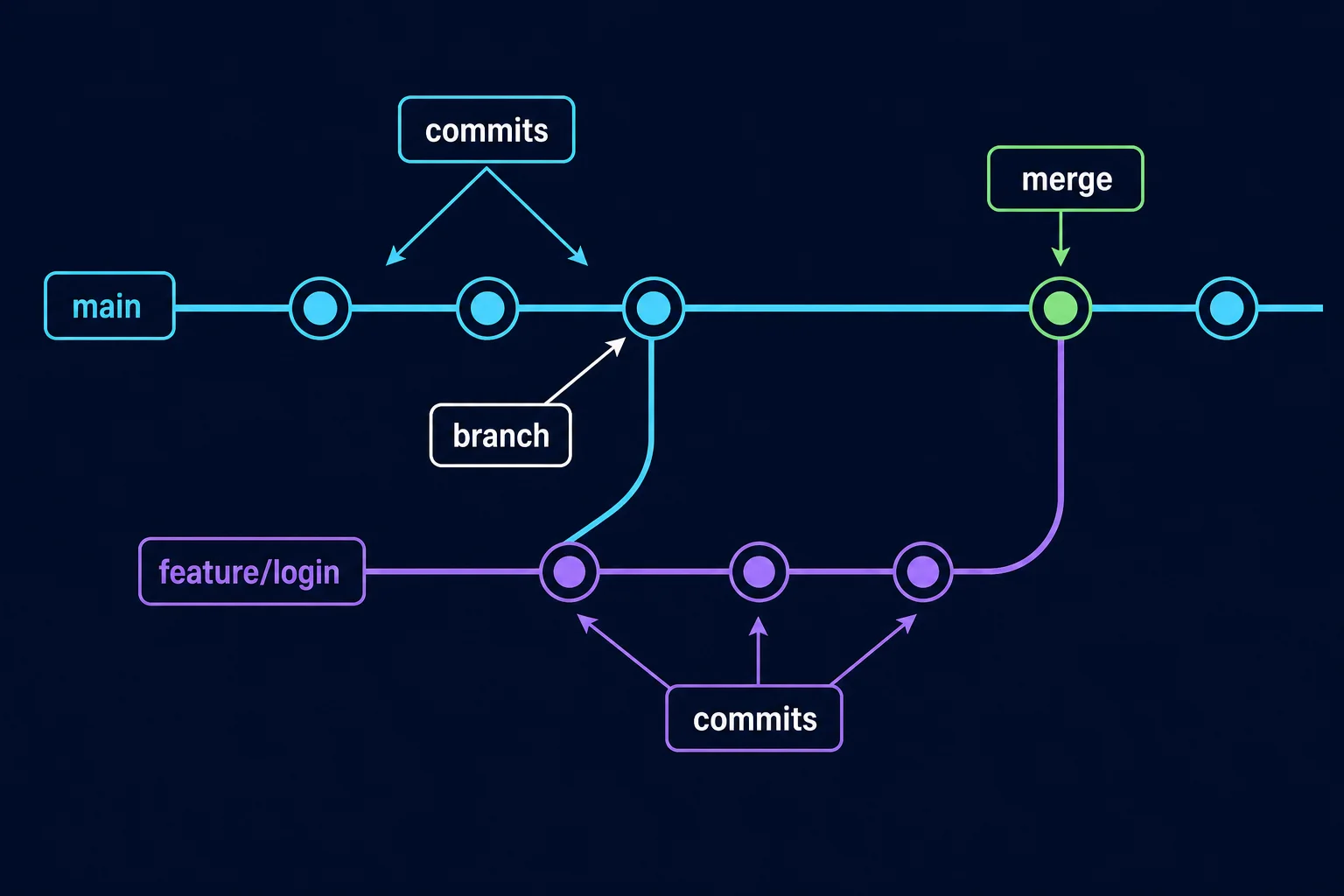
5. What is a branch?
A branch is a separate line of work. For example, the stable version stays on main while you build login on feature/login. Until the work is done, changes on the new branch do not enter main.
Main branch commands
git branch                    # list local branches
git branch --all              # local and remote

git switch -c feature/login   # create and switch to new branch
git switch main               # switch back to main

git branch -d feature/login   # delete merged branch
The older command git checkout -b feature/login does the same thing, but git switch is clearer for beginners.
6. Full example: building a login feature
Step 1: update main
git switch main
git pull --ff-only origin main
The --ff-only option prevents pull from creating an unwanted merge commit. If local and remote history have diverged, the command stops so you can decide deliberately.
Step 2: create a branch
git switch -c feature/loginStep 3: commit small, related changes
# edit files
git status
git diff

git add src/LoginService.cs tests/LoginServiceTests.cs
git diff --staged
git commit -m "Add credential validation"
git diff shows unstaged changes; git diff --staged shows exactly what the next commit will contain.
Step 4: push the branch
git push -u origin feature/loginStep 5: open a Pull Request or Merge Request
- Open a Pull Request on GitHub or a Merge Request on GitLab.
- Describe the goal and how to test the change.
- CI should run build and tests.
- Another team member reviews the code.
- After approval, merge the branch into
main.
Step 6: cleanup after merge
git switch main
git pull --ff-only origin main
git branch -d feature/login
git push origin --delete feature/login
Deleting a branch after merge does not erase commit history; merged commits remain in main.
-d. Only after you are sure the PR was merged and there are no unpushed commits, delete the local branch with git branch -D feature/login.
7. Branch types and naming
A shared naming pattern makes each branch's purpose clear without opening the code:
| Type | Use | Example |
|---|---|---|
feature/ | New feature | feature/user-login |
bugfix/ | Regular bug fix | bugfix/empty-cart-total |
hotfix/ | Urgent production fix | hotfix/payment-timeout |
release/ | Preparing a version in Git Flow | release/2.4.0 |
chore/ | Technical work without a new feature | chore/update-dependencies |
docs/ | Documentation change | docs/authentication-guide |
refactor/ | Structure improvement without behavior change | refactor/order-service |
spike/ | Temporary research or experiment | spike/redis-cache |
Suggested rules:
- Use lowercase letters and hyphens.
- Keep names short but descriptive;
fixormy-branchis vague. - If you use a work tracker, add the task ID:
feature/PROJ-142-user-login. - Keep branches short-lived; a months-old branch is hard to merge and review.
8. What's the difference between Merge, Rebase, and Squash?
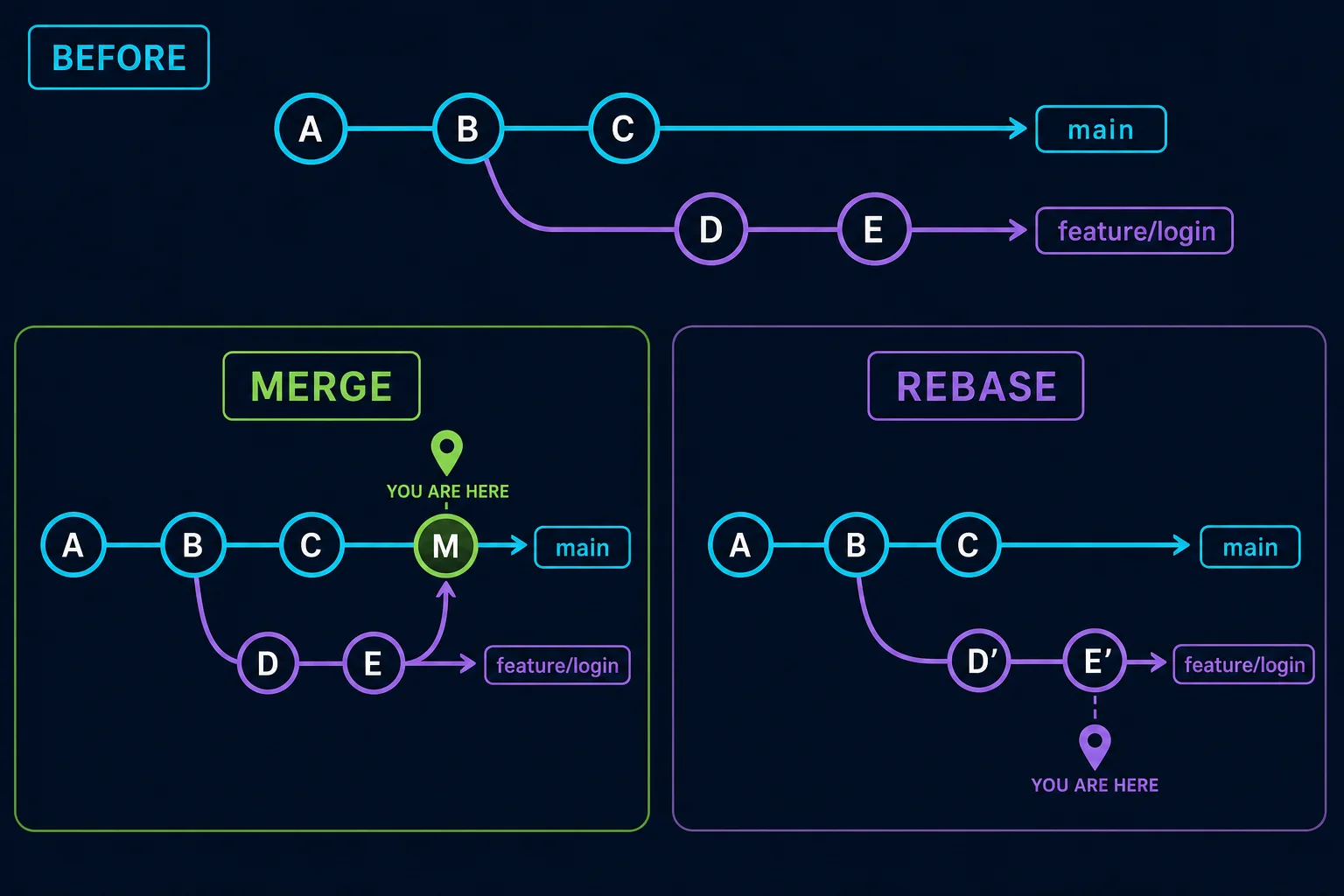
In Merge you stand on the target branch — the one that will receive changes.
In Rebase you stand on the working or feature branch — the one that should be replayed on top of the latest main.
Merge
Merge connects the history of two branches and usually preserves the real branching timeline. git merge X means: "bring changes from branch X into the current branch."
So if we want to bring feature/login into main, we must be on main first:
git switch main
git pull --ff-only origin main
git merge feature/login
To confirm the current branch:
git branch --show-current
# output should be maingit merge main. The current branch is always the receiver.
# bring main changes into feature
git switch feature/login
git fetch origin
git merge origin/main
Rebase
Rebase takes your branch's commits and replays them after the latest commit on the base branch. The result is a clean, linear history.
If we want to update feature/login with the latest main, we must be on feature/login:
git switch feature/login
git fetch origin
git rebase origin/main

git branch --show-current
# output is still feature/login
The last command means: "temporarily remove feature/login's commits, move it to the end of origin/main, and replay feature's commits on top."
main and run git rebase feature/login; that rewrites main and reverses the direction of the operation.
--force-with-lease only with team awareness — not --force.
Squash merge
Turns all commits from one Pull Request into a single commit on main. Good for small branches and messy intermediate commits.
If you do it locally, like Merge you stand on the target branch main:
git switch main
git merge --squash feature/login
git commit -m "Add user login"
If you use the Squash and merge button on GitHub or GitLab, the service does this on the Pull Request's target branch; you don't need a specific branch checked out locally before clicking.
Summary: which branch should we be on?
| Goal | Current branch | Command |
|---|---|---|
| Bring feature into main with Merge | main | git merge feature/login |
| Bring main changes into feature with Merge | feature/login | git merge origin/main |
| Replay feature on latest main with Rebase | feature/login | git rebase origin/main |
| Squash feature into main locally | main | git merge --squash feature/login |
| Method | Advantage | Good for |
|---|---|---|
| Merge commit | Preserves full branch history | Large or team changes |
| Rebase and merge | Linear history | Teams comfortable rewriting history |
| Squash and merge | One clean commit per PR | GitHub Flow and small features |
9. What is a merge conflict and how do you resolve it?
If two branches change the same part of the same file differently, Git cannot choose which is correct and creates a conflict.
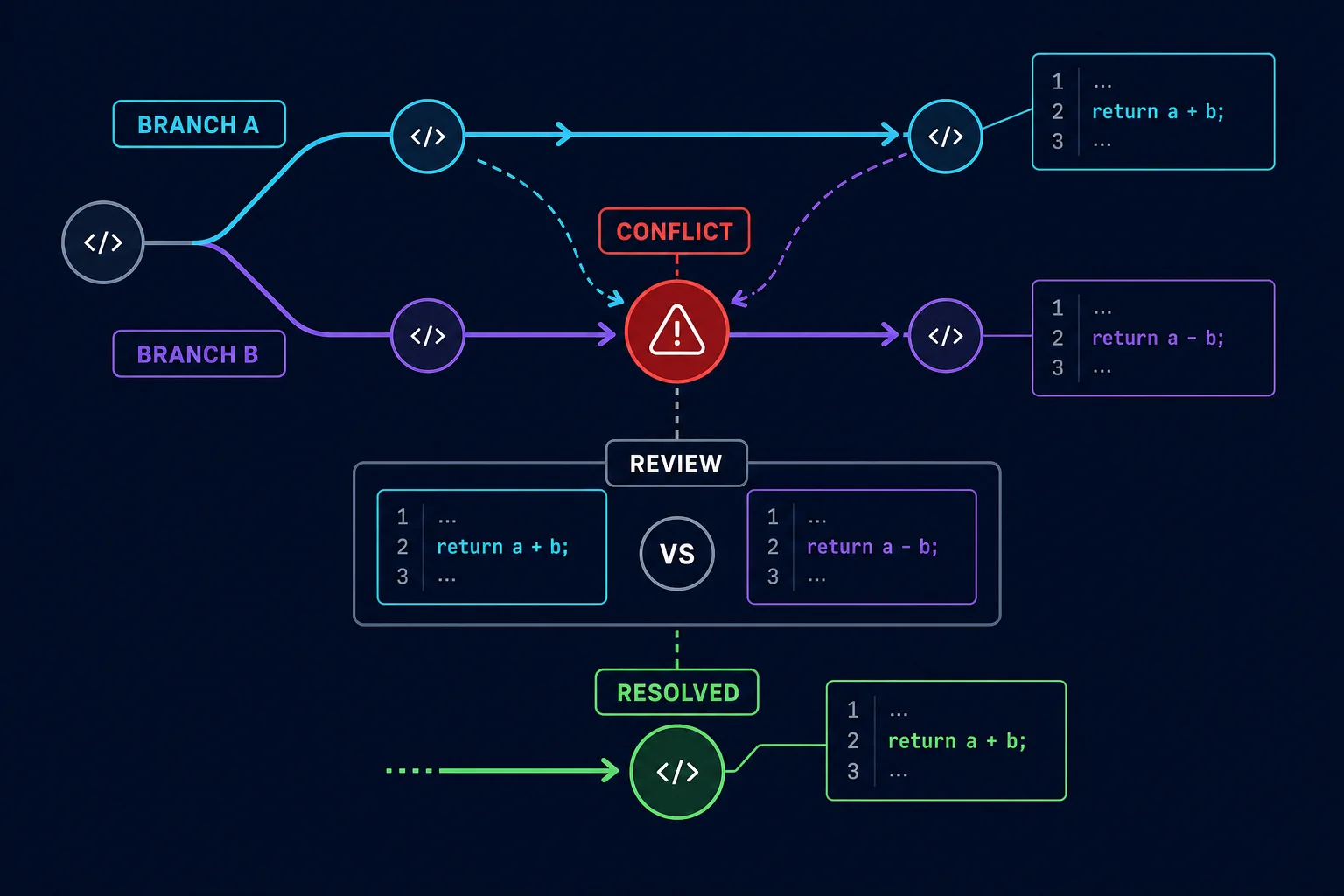
Git marks the conflicting section like this:
<<<<<<< HEAD
return price * 0.9;
=======
return price - discount;
>>>>>>> feature/discount
To resolve:
- Open the file and review both changes.
- Choose or combine the correct version.
- Remove all
<<<,===, and>>>markers completely. - Run tests; fixing the text does not mean the logic is correct.
- Stage the file and continue the operation.
git status

# fix and test the file
git add src/PriceService.cs

# if you were merging
git commit

# if you were rebasing
git rebase --continue
To cancel and return to the previous state:
git merge --abort
# or
git rebase --abort
10. Common branching models
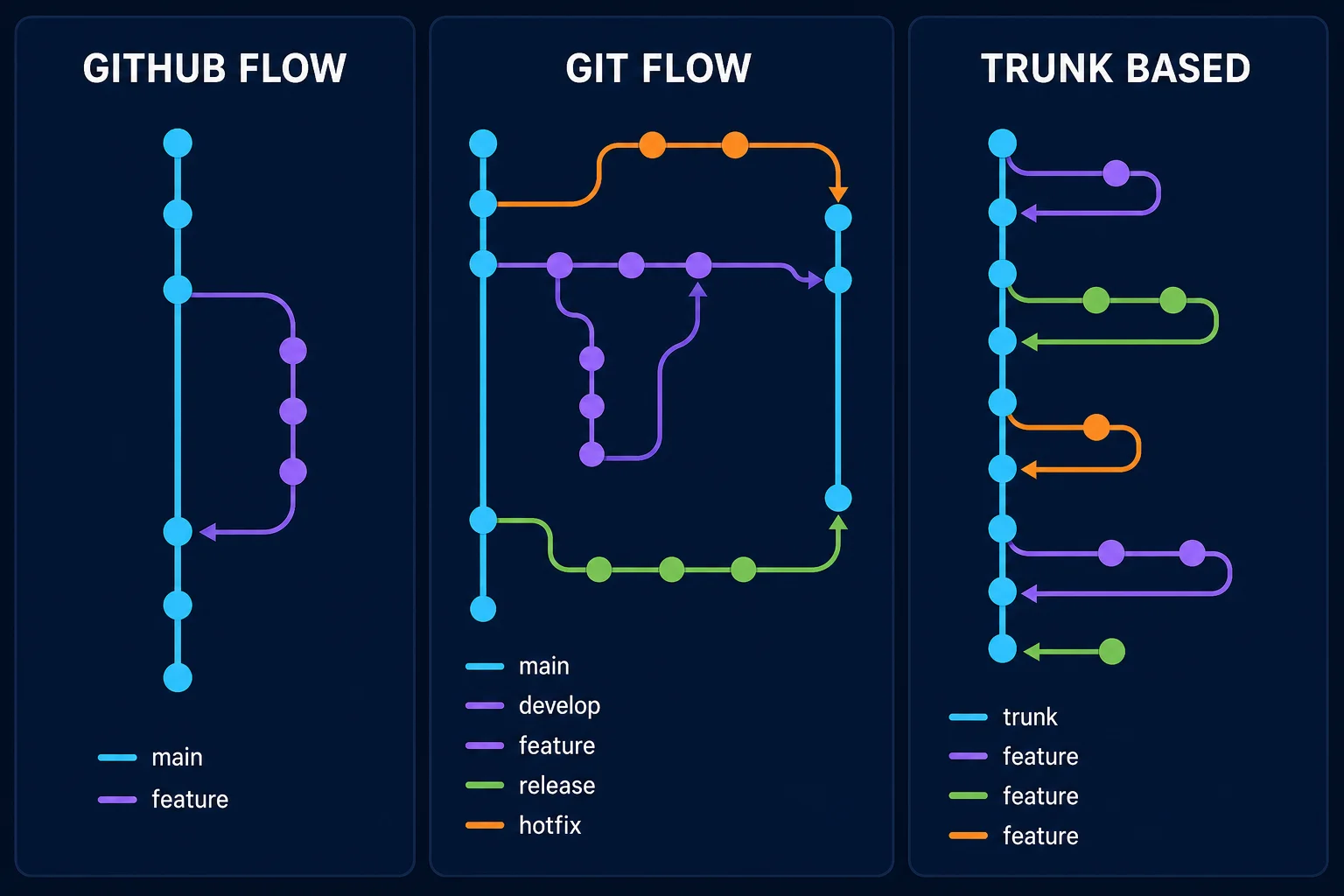
GitHub Flow — simple and right for most teams
mainshould always be healthy and deployable.- Create a short-lived feature branch for each change.
- Open a Pull Request; run CI and review.
- After merge, deploy main and delete the branch.
Good for web apps, APIs, small teams, and products shipped often. For getting started, it is usually the best choice.
Git Flow — structured but heavier
main: released production versionsdevelop: where the next version's changes collectfeature/*: new feature, usually from developrelease/*: stabilize and prepare a versionhotfix/*: urgent fix from main
Useful for products with formal versioning, several supported versions, and periodic releases. For a team deploying daily, it often adds extra branches and merges.
Trunk-Based Development — very continuous integration
Developers integrate small changes directly or from very short-lived branches into a main line called trunk/main. Incomplete features are hidden with feature flags.
- Branches usually live from a few hours up to one or two days.
- Fast CI and strong automated tests are essential.
- Small merges reduce conflicts and drift between branches.
- Suited to mature teams with Continuous Delivery.
GitLab Flow and release branches
GitLab Flow is a flexible variant that combines feature branches and Merge Requests with environment or release branches. For example, main is the development path and production or release/2.x branches hold released versions.
| Model | Complexity | Release cadence | Good choice for |
|---|---|---|---|
| GitHub Flow | Low | Continuous | Most web apps and teams |
| Git Flow | High | Periodic, versioned | Enterprise software or multiple active versions |
| Trunk-Based | Simple process, high technical bar | Very continuous | Mature teams with strong CI and feature flags |
| GitLab Flow | Medium | Depends on environment or release | Teams needing environment or version branches |
11. Recommended team workflow
For most teams this simplified GitHub Flow is enough:
What makes a good Pull Request?
- Clear title: "Add password reset endpoint" beats "Update code".
- Explain the problem and why this solution
- How to test and test results
- Screenshots for UI changes
- Link to the related Issue or Task
- Small, focused changes; split unrelated refactors.
12. Undoing changes without fear
| Need | Safer command |
|---|---|
| Discard unsaved changes in one file | git restore file.txt |
| Unstage a file | git restore --staged file.txt |
| Fix the latest local commit message | git commit --amend |
| Undo a published commit | git revert COMMIT_SHA |
| Temporarily save work | git stash push -m "work in progress" |
# see the change before undoing
git show COMMIT_SHA

# create a new commit that reverses the effect of the previous one
git revert COMMIT_SHA
git reset --hard and force push can make changes unreachable or break team history. Until you know exactly what they do, use git revert for published commits.
More advanced Git commands
Being advanced in Git means knowing, before each command, which of the three areas — HEAD, Staging Area, and Working Directory — will change. These commands are powerful; practice on a test repository first.
Fetch and FETCH_HEAD
git fetch downloads remote information but does not change your files or current branch. That lets you review changes before merging:
git fetch --prune origin

# new commits on remote main
git log --oneline HEAD..origin/main

# how your branch differs from where it split from main
git diff --stat origin/main...HEAD
The --prune option removes remote-tracking branches deleted on the server; it does not delete your local branch.
FETCH_HEAD is a temporary ref to the result of the latest fetch. In this example we fetch only the main branch and inspect before merging:
git switch main
git fetch origin main

git show --stat FETCH_HEAD
git log --oneline HEAD..FETCH_HEAD
git merge --ff-only FETCH_HEAD
FETCH_HEAD changes on the next fetch and can have multiple entries if several refs were fetched. For long-lived scripts, an explicit ref like origin/main or a commit SHA is clearer.
What exactly does reset change?
| Mode | HEAD / Branch | Staging | Files |
|---|---|---|---|
--soft | Moves | Unchanged | Unchanged |
--mixed | Moves | Aligned with target commit | Unchanged |
--hard | Moves | Aligned with target | Replaced with target |
# remove last commit but keep changes in Staging
git reset --soft HEAD~1

# remove last commit and return changes to unstaged state
git reset --mixed HEAD~1

# --mixed is the default
git reset HEAD~1
reset is useful for fixing local history. For commits others already have, revert is usually safer because it does not rewrite history.
What does reset --hard FETCH_HEAD do?
This command sets the current branch, Staging Area, and tracked files exactly to the fetched commit. On main, uncommitted local changes and diverging local commits are discarded:
git switch main
git fetch origin main

# inspect the difference first
git status
git log --oneline --left-right HEAD...FETCH_HEAD
git diff --stat HEAD FETCH_HEAD

# create an escape path
git stash push --include-untracked -m "before hard sync"
git branch backup/main-before-reset

# only when you really want local to match remote exactly
git reset --hard FETCH_HEAD
git reset --hard FETCH_HEAD is not a normal pull command. For day-to-day updates use git pull --ff-only or git merge --ff-only FETCH_HEAD. Hard reset is only appropriate when you deliberately want to discard local changes.
ORIG_HEAD — a quick way back
Before some important operations, Git stores the previous position in ORIG_HEAD:
git show --oneline ORIG_HEAD

# only after checking status and confirming the target
git reset --hard ORIG_HEAD
ORIG_HEAD is not permanent; the next operation can change it. For reliable recovery, use reflog.
Reflog — finding a lost commit
Reflog records local HEAD moves, even if the commit is no longer visible on a branch:
git reflog --date=local

# inspect the found commit first
git show abc1234

# safest move: create a rescue branch
git switch -c recovery/lost-work abc1234git reflog and create a rescue branch from a good commit.
Restore — revert a file from a specific source
# restore one file to current commit version
git restore src/App.cs

# unstage without removing file changes
git restore --staged src/App.cs

# get file version from main
git restore --source=origin/main -- src/App.cs

# align both Staging and file with HEAD
git restore --source=HEAD --staged --worktree src/App.cs
git restore on the Working Directory can discard unsaved changes. Always run git diff first.
Advanced stash
# temporarily save tracked and untracked files
git stash push --include-untracked -m "login work in progress"

git stash list
git stash show --patch stash@{0}

# apply keeps the stash; pop removes it after successful apply
git stash apply stash@{0}

# create branch from where the stash was made
git stash branch recovery/login stash@{0}
Stash is not a long-term substitute for a commit. For important work, a branch and local commit are easier to track.
Cherry-pick — bring one specific commit
When you need only one specific fix from another branch:
git switch release/2.0
git cherry-pick abc1234

# if there is a conflict
git add .
git cherry-pick --continue

# cancel the operation completely
git cherry-pick --abortBisect — find a bad commit with binary search
If the current version is broken and an older one was good, Git can find the bad commit with the fewest tests:
git bisect start
git bisect bad HEAD
git bisect good v2.0.0

# Git checks out a middle commit.
# after testing, repeat one of these:
git bisect good
git bisect bad

# after finding the bad commit
git bisect reset
If you have an automated test:
git bisect run dotnet testExit code 0 means the commit is good; 1 through 127 except 125 means bad; 125 means the commit cannot be tested.
Worktree — multiple branches at once without stash
Worktree creates another Working Directory for the same repository. For example, while working on a feature you can open an urgent hotfix in a separate folder:
git worktree add ../shop-hotfix -b hotfix/payment main

# after finishing and leaving that folder
git worktree remove ../shop-hotfix
git worktree list
Clean — remove untracked files with preview
# only shows what would be deleted
git clean -nd

# include ignored files and folders in preview
git clean -ndx-n first. The -x option also selects ignored files like build output or even sensitive local files.
Useful commands for inspecting history
# graphical history of all branches
git log --graph --oneline --decorate --all

# commits feature has but main does not
git log --oneline main..feature/login

# feature changes since splitting from main
git diff main...feature/login

# which commit changed a line?
git blame -L 20,35 src/PaymentService.cs

# search commits by message text
git log --grep="payment" --oneline

# search commits that changed occurrence count of a string
git log -S "CalculateFee" --oneline --all
13. Important tips and common mistakes
- Before every commit, run
git statusandgit diff --staged. - Do not commit generated files, secrets, or personal settings.
- Do not work directly on
main; use Pull Requests and branch protection. - Don't wait days; push small branches early and open the PR as Draft.
- Pull main regularly so conflicts stay small.
- One commit should not mix feature, refactor, and unrelated formatting.
- Commit messages should use a clear verb and goal:
Fix duplicate payment submission. - Tests and CI must be green before merge.
- Don't copy unknown Git commands from the internet; check their effect with
git statusand the docs first.
Common errors
| Message or problem | Meaning and fix |
|---|---|
nothing to commit | No new changes to commit, or files are ignored. |
non-fast-forward | Remote has new commits; fetch/pull first and resolve the difference. |
detached HEAD | You are on a commit, not a branch; to keep changes run git switch -c new-branch. |
| File still visible after adding to .gitignore | File was already tracked; remove it from the index deliberately. |
| Large, painful conflict | Branch is too big or too old; make changes smaller and merge sooner. |
14. Summary
- Git keeps change history with commits.
addstages a change,commitrecords it locally, andpushsends it to the remote.- A branch is a lightweight, separate path for safe development of one change.
- Create a short-lived, named branch for each feature or bug.
- A Pull Request is where CI, discussion, review, and merge decisions happen.
- For most teams GitHub Flow is enough; Git Flow suits complex releases and Trunk-Based suits very continuous integration.
- Small commits, short branches, and automated tests reduce conflict and release risk.
The best way to learn Git is to build a test project and practice branches, merge, and conflicts without fear of breaking real code.