What Is CI/CD?
From code change to automated test, build, and deploy — simple, step by step, and practical
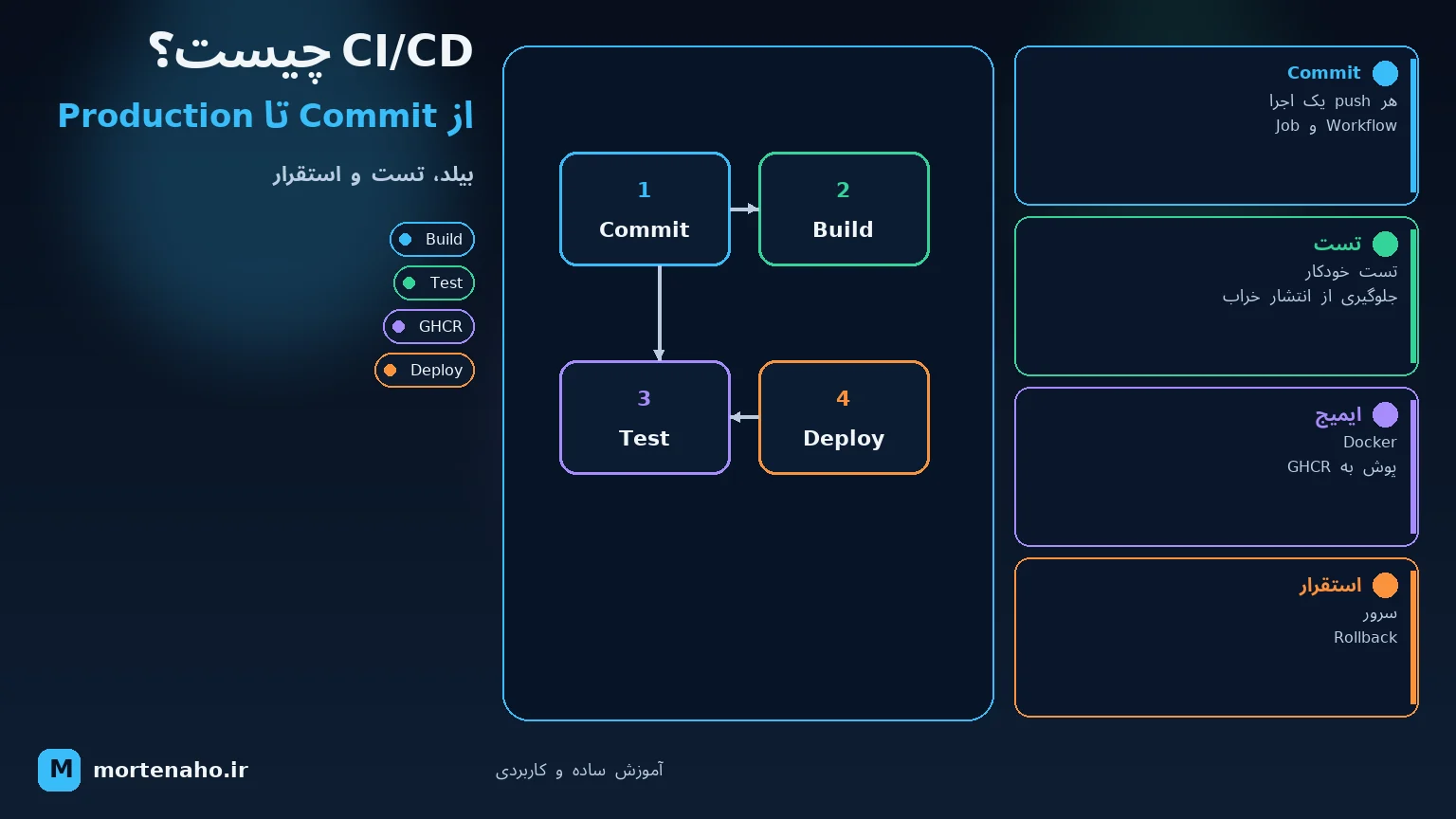
What we'll build
We'll configure a .NET project so that every Pull Request automatically runs restore, build, and test. After merging into the main branch, a Docker image is built, published to GitHub Container Registry, and deployed to a Linux server.
Before writing any pipeline code, we explain every concept with simple examples — so you don't need prior DevOps experience to get started.
1. What is CI/CD?
CI/CD is a set of practices and tools that automate the repetitive work of shipping software. Instead of manually building, testing, and copying the project to a server every time, a Pipeline runs those steps in a defined order.
CI means Continuous Integration
In plain terms, it means "continuous integration." Developers merge small changes into the repository regularly, and the system automatically builds and tests the code after each change.
CD has two closely related meanings
| Term | Simple meaning | Final step |
|---|---|---|
| Continuous Delivery | The release is always ready to ship. | Production release requires manual approval. |
| Continuous Deployment | Every approved change is released automatically. | Production release happens without manual intervention. |
Both approaches are valid. For sensitive systems like banking, manual approval before Production is usually sensible. For products with small releases and strong tests, Continuous Deployment can be a good fit.
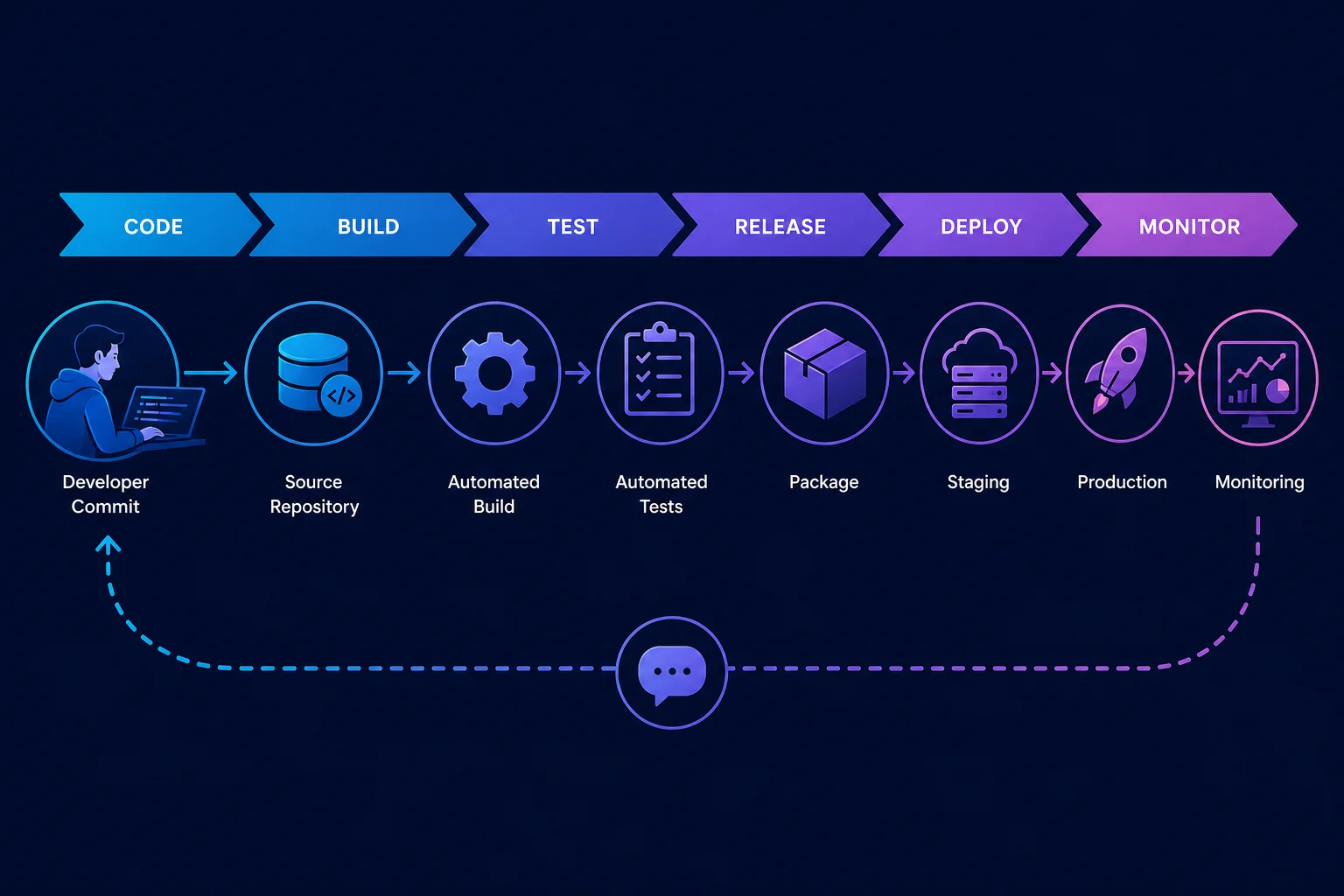
2. Why do we need CI/CD?
Suppose a manual release looks like this:
- A developer builds the project on their laptop.
- They ZIP the files and send them to the server admin.
- The admin deletes the old version and copies the new one.
- Someone forgets to run tests or migrations.
- The service breaks and nobody knows exactly which version is installed.
CI/CD reduces these problems:
- Repeatability: Every release runs the same commands.
- Speed: Repetitive work is done by machines instead of people.
- Quality: Code that fails build or test does not get released.
- Traceability: You know which commit and which image is on the server.
- Lower risk: Smaller changes and more frequent releases make problems easier to find and roll back.
3. Key terms
| Term | Simple explanation |
|---|---|
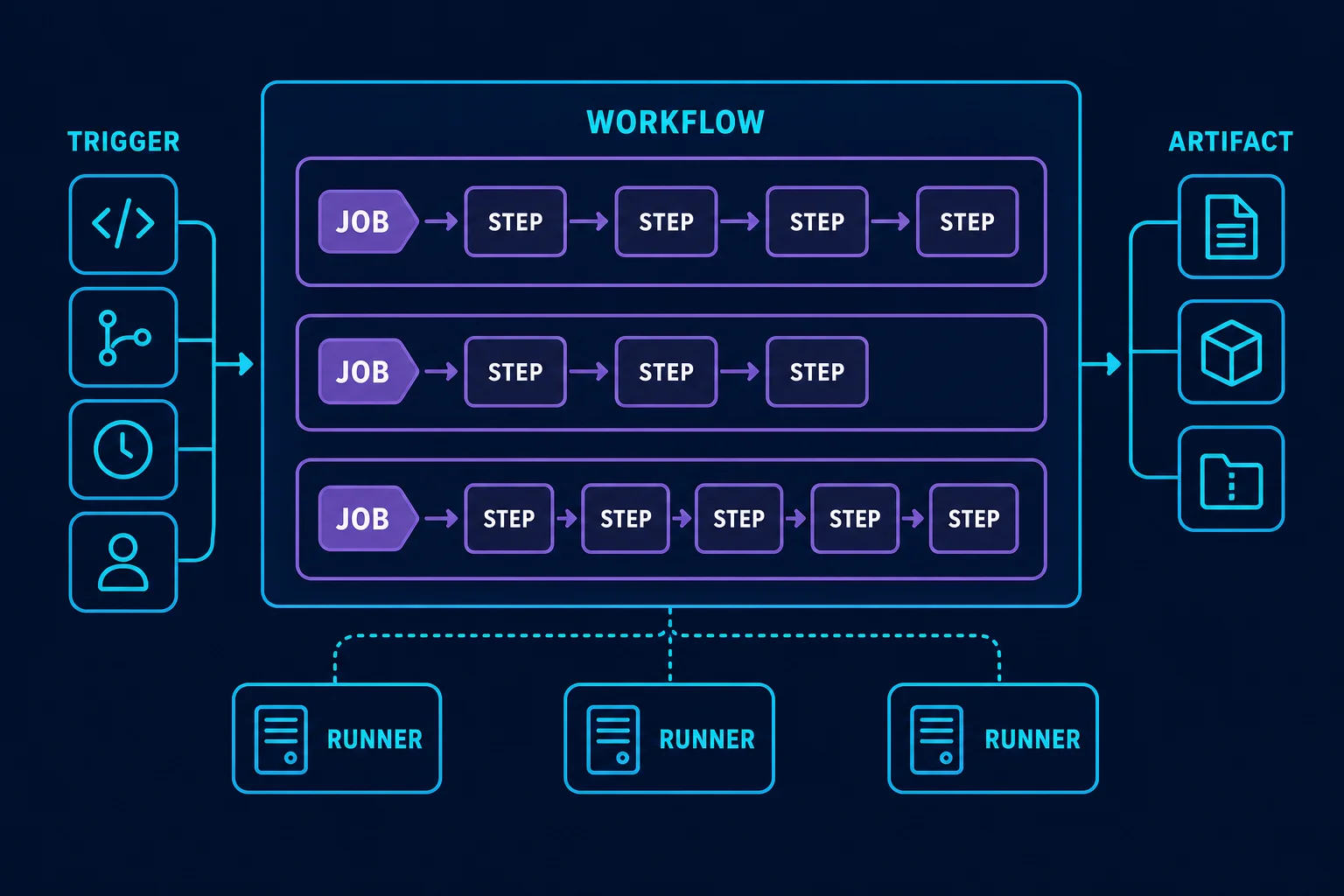
| Pipeline | The full automated path from fetching code through test and release. |
| Workflow | The file that defines the pipeline; in GitHub Actions it's usually a YAML file. |
| Trigger | The event that starts the workflow — e.g. push or Pull Request. |
| Job | A group of tasks that run on one Runner — e.g. a test job. |
| Step | One stage inside a job — e.g. running dotnet test. |
| Runner | The virtual machine or server that executes pipeline commands. |
| Artifact | Output from a run that can be stored — e.g. a publish folder or test report. |
| Registry | Where Docker images are stored — e.g. GHCR or Docker Hub. |
| Environment | A target environment such as Development, Staging, or Production. |
| Secret | Confidential data such as an SSH key, stored encrypted. |
4. Standard pipeline flow
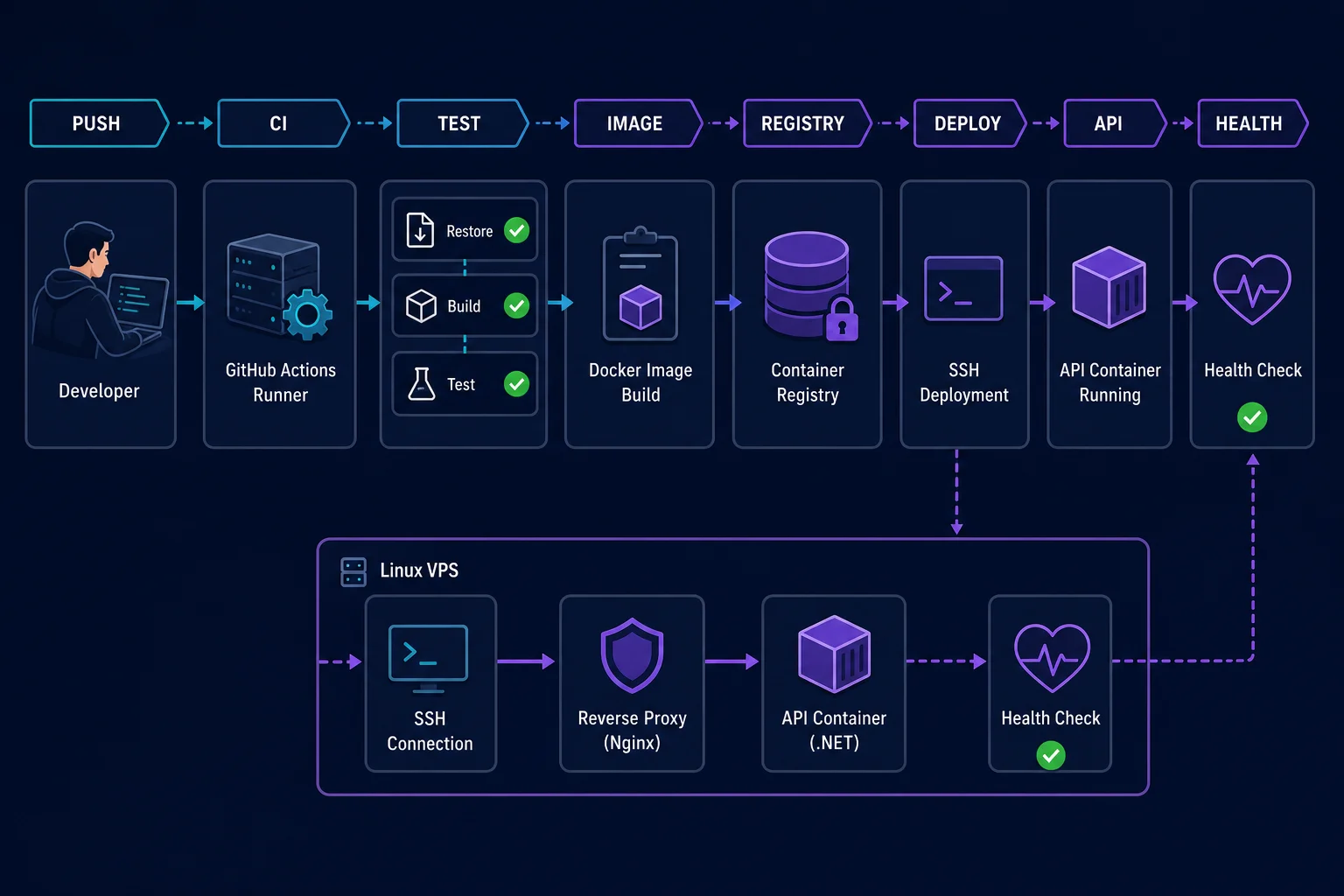
5. Sample project setup
Our assumed repository layout:
SampleApi/
├── src/
│   └── SampleApi/
│       ├── SampleApi.csproj
│       ├── Program.cs
│       └── Dockerfile
├── tests/
│   └── SampleApi.Tests/
│       └── SampleApi.Tests.csproj
├── .github/
│   └── workflows/
│       └── ci-cd.yml
└── SampleApi.sln
Before building the pipeline, these commands must succeed on your machine:
dotnet restore SampleApi.sln
dotnet build SampleApi.sln --configuration Release --no-restore
dotnet test SampleApi.sln --configuration Release --no-build
A simple health check
To verify the app after deploy, add an endpoint in Program.cs:
builder.Services.AddHealthChecks();

var app = builder.Build();

app.MapHealthChecks("/health");
app.MapControllers();

app.Run();
6. Building CI with GitHub Actions
Create the file .github/workflows/ci-cd.yml in the repository. YAML is sensitive to spacing — do not use tabs.
name: CI/CD

on:
  pull_request:
    branches: [main]
  push:
    branches: [main]

permissions:
  contents: read

jobs:
  test:
    name: Build and test
    runs-on: ubuntu-latest

    steps:
      - name: Checkout source
        uses: actions/checkout@v4

      - name: Setup .NET
        uses: actions/setup-dotnet@v4
        with:
          dotnet-version: "8.0.x"

      - name: Restore dependencies
        run: dotnet restore SampleApi.sln

      - name: Build
        run: dotnet build SampleApi.sln --configuration Release --no-restore

      - name: Test
        run: >
          dotnet test SampleApi.sln
          --configuration Release
          --no-build
          --logger "trx"
          --results-directory TestResults

      - name: Upload test results
        if: always()
        uses: actions/upload-artifact@v4
        with:
          name: test-results
          path: TestResults
          if-no-files-found: ignore
What happens line by line?
ondefines that the workflow runs on Pull Requests and pushes tomain.permissionslimits the workflow's default access.runs-onrequests a temporary Linux runner from GitHub.checkoutputs the repository code on the runner.setup-dotnetinstalls the required SDK version.--no-restoreand--no-buildavoid repeating the previous step's work.if: always()keeps test reports even when tests fail.
Branch protection
CI alone is not enough. In GitHub settings for the main branch, create a Branch Protection Rule and enable:
- Changes must enter only via Pull Request.
- At least one review is required.
- The build and test job must pass before merge.
- Direct push and force push to
mainare disabled.
One pipeline on GitHub, GitLab, and Microsoft Azure DevOps
The CI/CD concept is the same on all three platforms; only names and YAML shape differ. Switch tabs to see equivalent .NET build and test examples and each service's features.
GitHub Actions
The pipeline file lives at .github/workflows/ci.yml. GitHub-hosted runners, the built-in GITHUB_TOKEN, and direct GHCR integration are its main advantages.
name: CI

on:
  pull_request:
    branches: [main]
  push:
    branches: [main]

jobs:
  test:
    runs-on: ubuntu-latest
    steps:
      - uses: actions/checkout@v4
      - uses: actions/setup-dotnet@v4
        with:
          dotnet-version: "8.0.x"
      - run: dotnet restore SampleApi.sln
      - run: dotnet build SampleApi.sln -c Release --no-restore
- run: dotnet test SampleApi.sln -c Release --no-build- Secrets: under Settings → Secrets and variables → Actions
- Runner: GitHub-hosted or self-hosted
- Registry: usually GHCR, but Docker Hub and ACR work too.
- Release control: Environment, Required Reviewers, and Branch Protection
GitLab CI/CD
The pipeline is defined in .gitlab-ci.yml at the repository root. Each job sits in a stage, and a GitLab Runner executes it.
stages:
  - test
  - publish

variables:
  CONFIGURATION: "Release"

dotnet-test:
  stage: test
  image: mcr.microsoft.com/dotnet/sdk:8.0
  script:
    - dotnet restore SampleApi.sln
    - dotnet build SampleApi.sln -c $CONFIGURATION --no-restore
    - dotnet test SampleApi.sln -c $CONFIGURATION --no-build
  rules:
    - if: $CI_PIPELINE_SOURCE == "merge_request_event"
    - if: $CI_COMMIT_BRANCH == $CI_DEFAULT_BRANCH

publish-image:
  stage: publish
  image: docker:27-cli
  services:
    - docker:27-dind
  script:
    - echo "$CI_JOB_TOKEN" | docker login "$CI_REGISTRY"
      -u gitlab-ci-token --password-stdin
    - docker build -t "$CI_REGISTRY_IMAGE:$CI_COMMIT_SHORT_SHA" .
    - docker push "$CI_REGISTRY_IMAGE:$CI_COMMIT_SHORT_SHA"
  rules:
- if: $CI_COMMIT_BRANCH == $CI_DEFAULT_BRANCH- Secrets: under Settings → CI/CD → Variables with Masked and Protected options
- Runner: shared runner or your own GitLab Runner on Docker, Shell, or Kubernetes
- Registry: GitLab Container Registry with ready-made
CI_REGISTRYandCI_REGISTRY_IMAGEvariables - Release control: Protected Branch, Protected Environment, and manual jobs with
when: manual
Microsoft Azure DevOps Pipelines
The file is usually azure-pipelines.yml. Azure DevOps bundles Pipelines with Repos, Boards, Artifacts, Environments, and direct Azure integration.
trigger:
  branches:
    include:
      - main

pr:
  branches:
    include:
      - main

pool:
  vmImage: ubuntu-latest

steps:
  - task: UseDotNet@2
    inputs:
      packageType: sdk
      version: "8.0.x"

  - task: DotNetCoreCLI@2
    displayName: Restore
    inputs:
      command: restore
      projects: SampleApi.sln

  - task: DotNetCoreCLI@2
    displayName: Build
    inputs:
      command: build
      projects: SampleApi.sln
      arguments: "-c Release --no-restore"

  - task: DotNetCoreCLI@2
    displayName: Test
    inputs:
      command: test
      projects: SampleApi.sln
      arguments: "-c Release --no-build"

  - task: Docker@2
    displayName: Build and push
    condition: eq(variables['Build.SourceBranch'], 'refs/heads/main')
    inputs:
      command: buildAndPush
      containerRegistry: acr-service-connection
      repository: sample-api
      Dockerfile: src/SampleApi/Dockerfile
      tags: |
$(Build.SourceVersion)- Secrets: Secret Variable, Variable Group, or Azure Key Vault connection
- Agent: Microsoft-hosted or self-hosted agent
- Registry: usually Azure Container Registry via Service Connection
- Deploy: Azure Web App, Container Apps, AKS, Virtual Machine, or SSH server
- Release control: Environment, Approvals and Checks, and Branch Policies in Azure Repos
acr-service-connection is a placeholder Service Connection name. Create it in Project Settings and grant only the access the registry needs.
| Platform | Main file | Good choice when… |
|---|---|---|
| GitHub Actions | .github/workflows/*.yml | Code is on GitHub and you want fast setup and a large Marketplace. |
| GitLab CI/CD | .gitlab-ci.yml | You want one integrated platform or on-prem install with controllable runners. |
| Azure DevOps | azure-pipelines.yml | Your organization uses the Microsoft ecosystem, Azure Repos, Boards, and Service Connections. |
7. Building and publishing a Docker image
Place a multi-stage Dockerfile in the API project path:
FROM mcr.microsoft.com/dotnet/sdk:8.0 AS build
WORKDIR /src

COPY ["src/SampleApi/SampleApi.csproj", "src/SampleApi/"]
RUN dotnet restore "src/SampleApi/SampleApi.csproj"

COPY . .
RUN dotnet publish "src/SampleApi/SampleApi.csproj" \
    --configuration Release \
    --output /app/publish \
    --no-restore

FROM mcr.microsoft.com/dotnet/aspnet:8.0 AS runtime
WORKDIR /app
COPY --from=build /app/publish .

ENV ASPNETCORE_URLS=http://+:8080
EXPOSE 8080

USER $APP_UID
ENTRYPOINT ["dotnet", "SampleApi.dll"]
And a simple .dockerignore:
**/bin/
**/obj/
.git/
.github/
.vs/
.vscode/
TestResults/
README.md
What is GHCR?
GHCR stands for GitHub Container Registry — a GitHub service for storing and distributing container images. Its address is ghcr.io.
A Dockerfile is like a recipe, a Docker image is the final packaged artifact ready to run, and a Registry is the warehouse that stores those packages. GHCR is that warehouse tied to your GitHub account and repository.
ghcr.io with a name and tag.Naming an image in GHCR
ghcr.io/OWNER/IMAGE_NAME:TAG

# Example
ghcr.io/mortenaho/sample-api:latest
ghcr.io/mortenaho/sample-api:sha-a1b2c3dghcr.io: Registry addressmortenaho: GitHub user or organization namesample-api: image or package namelatestorsha-a1b2c3d: image version or tag
Login, push, and pull manually
For local work, create a Personal Access Token with the minimum required scope. Your GitHub account password is not used for docker login.
# Login; do not put the token directly in shell history
echo "$CR_PAT" | docker login ghcr.io \
  -u YOUR_GITHUB_USERNAME --password-stdin

# Build image
docker build -t ghcr.io/mortenaho/sample-api:v1.0.0 .

# Push to GHCR
docker push ghcr.io/mortenaho/sample-api:v1.0.0

# Pull on the server
docker pull ghcr.io/mortenaho/sample-api:v1.0.0

# Run container
docker run -d --name sample-api -p 8080:8080 \
ghcr.io/mortenaho/sample-api:v1.0.0| Operation | Required scope |
|---|---|
| Pull a private package | read:packages |
| Push or update a package | write:packages |
| Delete package versions | delete:packages — only when truly needed |
Public or private?
- Public: anyone can pull the image; suitable for open-source projects.
- Private: only authorized users and servers can pull; login is required before pull.
A new package may be created as Private. From the Package page on GitHub you can manage visibility, repository access, and available versions.
What's the difference between a tag and a digest?
A tag is a human-readable name like v1.0.0 or latest and can later point to a different image. A digest is the immutable content identifier of an image:
ghcr.io/mortenaho/sample-api@sha256:abc123...
For Production, use a commit-based tag or digest. latest is fine for a quick look, but alone it does not specify exactly which version was deployed.
How is GHCR different from Docker Hub?
| GHCR | Docker Hub |
|---|---|
| Integrates directly with repositories, GitHub Actions, and GitHub permissions. | A public, standalone registry with a broad Docker ecosystem. |
Can use the built-in GITHUB_TOKEN in workflows. | Usually requires a separate username and access token. |
| Natural, simple choice when code lives on GitHub. | Very common for public images and use independent of code hosting. |
Add the job below after the test job in the same workflow file. It runs only on push to main — Pull Requests must not publish images.
  publish-image:
    name: Build and publish image
    runs-on: ubuntu-latest
    needs: test
    if: github.event_name == 'push' && github.ref == 'refs/heads/main'

    permissions:
      contents: read
      packages: write

    steps:
      - name: Checkout source
        uses: actions/checkout@v4

      - name: Login to GHCR
        uses: docker/login-action@v3
        with:
          registry: ghcr.io
          username: ${{ github.actor }}
          password: ${{ secrets.GITHUB_TOKEN }}

      - name: Create image tags
        id: meta
        uses: docker/metadata-action@v5
        with:
          images: ghcr.io/${{ github.repository }}
          tags: |
            type=raw,value=latest
            type=sha

      - name: Build and push
        uses: docker/build-push-action@v6
        with:
          context: .
          file: src/SampleApi/Dockerfile
          push: true
          tags: ${{ steps.meta.outputs.tags }}
labels: ${{ steps.meta.outputs.labels }}GITHUB_TOKEN for each run; the job only needs packages: write permission. A PAT is mainly for personal systems, servers, or cross-repository access.
Each commit produces two tags:
latest: the newest version — simple for humans but not precise or immutable.sha-abc1234: points to a specific commit and is better for deploy and rollback.
latest alone. With an immutable tag or digest you know exactly which code is running.
8. Linux server preparation
Install Docker and the Docker Compose plugin on the server. Then create a dedicated deploy user — do not use root for the pipeline.
sudo useradd --create-home --shell /bin/bash deploy
sudo usermod -aG docker deploy
sudo mkdir -p /opt/sample-api
sudo chown deploy:deploy /opt/sample-api
Create an SSH key dedicated to CI:
ssh-keygen -t ed25519 -C "github-actions-deploy" \
-f github-actions-deploy- Put the public key from
github-actions-deploy.pubin~deploy/.ssh/authorized_keyson the server. - Put the private key from
github-actions-deployin a GitHub Secret later. - This key should only have the access needed for deploy.
docker-compose.yml on the server
services:
  api:
    image: ghcr.io/mortenaho/sampleapi:${IMAGE_TAG:-latest}
    container_name: sample-api
    restart: unless-stopped
    ports:
      - "127.0.0.1:8080:8080"
    environment:
      ASPNETCORE_ENVIRONMENT: Production
      ConnectionStrings__Default: ${DB_CONNECTION}
    healthcheck:
      test: ["CMD", "curl", "--fail", "http://localhost:8080/health"]
      interval: 30s
      timeout: 5s
      retries: 3
Adjust the actual image name to match your repository. The server .env file must hold environment values and must never be committed to Git:
DB_CONNECTION=Server=db;Database=Sample;User Id=app;Password=CHANGE_MEcurl. Either install curl in the image or run the health check outside the container with an available tool. Having an endpoint alone is not enough — the health check command must actually run inside the image.
Server access to private GHCR
If the package is private, create a GitHub Personal Access Token with at least read:packages and log in once on the server:
echo "YOUR_READ_ONLY_TOKEN" | docker login ghcr.io \
  -u YOUR_GITHUB_USERNAME --password-stdin
If the package is public, pull usually works without login.
9. Automated deployment to the server
In GitHub go to Settings → Secrets and variables → Actions and create these Secrets:
| Name | Value |
|---|---|
VPS_HOST | Server IP or domain |
VPS_USER | e.g. deploy |
VPS_SSH_KEY | Full private key contents |
VPS_KNOWN_HOSTS | Server SSH fingerprint |
Get known hosts from a trusted machine and verify the fingerprint:
ssh-keyscan -H your-server.example.comAdd the deploy job at the end of the workflow:
  deploy:
    name: Deploy to production
    runs-on: ubuntu-latest
    needs: publish-image
    environment: production

    steps:
      - name: Configure SSH
        env:
          SSH_KEY: ${{ secrets.VPS_SSH_KEY }}
          KNOWN_HOSTS: ${{ secrets.VPS_KNOWN_HOSTS }}
        run: |
          install -m 700 -d ~/.ssh
          printf '%s\n' "$SSH_KEY" > ~/.ssh/deploy_key
          chmod 600 ~/.ssh/deploy_key
          printf '%s\n' "$KNOWN_HOSTS" > ~/.ssh/known_hosts

      - name: Pull and start the new version
        env:
          VPS_HOST: ${{ secrets.VPS_HOST }}
          VPS_USER: ${{ secrets.VPS_USER }}
        run: |
          IMAGE_TAG="sha-${GITHUB_SHA::7}"
          ssh -i ~/.ssh/deploy_key "$VPS_USER@$VPS_HOST" \
            "cd /opt/sample-api && \
             IMAGE_TAG=$IMAGE_TAG docker compose pull && \
             IMAGE_TAG=$IMAGE_TAG docker compose up -d --remove-orphans"

      - name: Verify deployment
        env:
          VPS_HOST: ${{ secrets.VPS_HOST }}
        run: |
          for attempt in {1..10}; do
            if curl --fail --silent "https://$VPS_HOST/health"; then
              exit 0
            fi
            sleep 6
          done
          echo "Health check failed"
          exit 1
Environment and manual approval
Create a GitHub Environment named production. You can set Required Reviewers. The pipeline then pauses after building the image and deploys only after an approver confirms — that is Continuous Delivery.
staging Environment first, deploy there, run smoke tests, then promote the same image to Production without rebuilding.
10. Secrets and pipeline security

- Do not commit passwords, tokens, connection strings, or private keys in YAML or the repository.
- Follow Least Privilege — each job gets only the access it needs.
- Do not print secrets with
echo. GitHub masking helps but is not complete or foolproof. - Workflows for code from untrusted Pull Requests must not access Production secrets.
- Review third-party actions and prefer pinning to a known commit SHA so sudden changes cannot break the pipeline.
- Use an SSH key dedicated to the pipeline so you can rotate or revoke it without affecting other users.
- Rotate secrets periodically and review team access to Environments.
- Scan dependencies and container images for vulnerabilities.
11. Rollback and database migrations
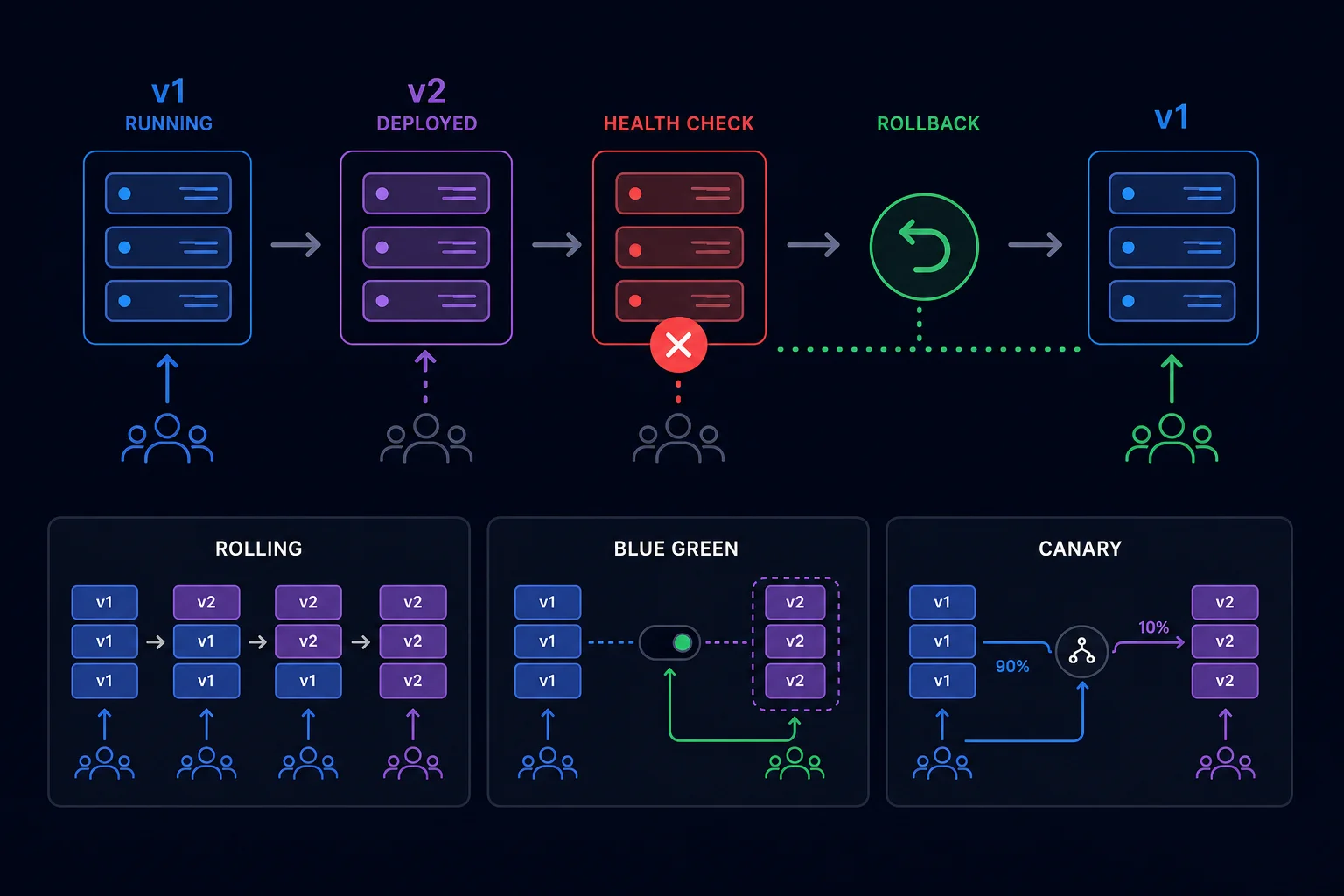
Application rollback
Because we have a separate SHA-based image for each commit, rolling back to the previous version is straightforward:
cd /opt/sample-api
IMAGE_TAG=sha-PREVIOUS docker compose pull
IMAGE_TAG=sha-PREVIOUS docker compose up -d
Find the previous successful image tag in pipeline logs or GHCR. It's best if the pipeline records deployed version, time, and commit in a deployment log.
Database migrations
The database is the hardest part of rollback. If a new version drops a column, rolling back code may no longer be possible. Use the Expand and Contract approach:
- Expand: add the new column or table without removing the old structure.
- Release a version compatible with both old and new structure.
- Migrate data and verify correctness.
- Contract: in a later release, after you're confident, remove the old structure.
12. Best practices for a real pipeline
- Build once, deploy many: promote the same tested image from Staging to Production — do not rebuild.
- Fast feedback: run fast tests first and place heavy steps after them.
- Immutable artifacts: do not mutate a published image; a new release gets a new tag or digest.
- Quality gates: failed tests, lint, security scan, or minimum coverage should block merge.
- Cache: NuGet and Docker layer caching speeds things up but must not replace restore and build correctness.
- Concurrency: do not allow two deploys to change Production at the same time.
- Timeout: set job timeouts so a stuck runner does not wait forever.
- Observability: after deploy, do not stop at a green pipeline — monitor logs, metrics, error rate, and latency.
- Notification: Production failures should alert via Slack, email, or monitoring tools.
- Runbook: document rollback and incident steps and practice them periodically.
Preventing concurrent deploys
You can add this at the workflow level:
concurrency:
  group: production
  cancel-in-progress: false
The next deploy waits for the previous one. For Pull Request CI you can use a separate group and cancel outdated runs.
Release strategies without downtime
| Strategy | Idea | Use case |
|---|---|---|
| Rolling | Instances are replaced gradually. | Common in Kubernetes with multiple replicas. |
| Blue/Green | Old and new versions run together; traffic switches at once. | Fast rollback, at the cost of more resources. |
| Canary | A small percentage of users see the new version first. | Reduces risk of large changes. |
The simple Docker Compose example in this tutorial may have a few seconds of downtime when swapping containers. True zero-downtime needs multiple instances, a load balancer, and health-aware rollout.
13. Common errors
| Problem | Likely cause and fix |
|---|---|
| Works on my machine, not in CI | Different SDK version, OS, or uncommitted files. Pin versions and make the environment reproducible. |
| Workflow does not run | File path must be exactly under .github/workflows and the trigger must match the branch name. |
| Push to GHCR fails with 403 | Missing packages: write or workflow permissions setting. |
| Server cannot pull image | Wrong image name or tag, private package, or expired server login. |
| SSH fails with Permission denied | Public key not in authorized_keys, wrong user, or incorrect file permissions. |
| Deploy is green but app is broken | Only the start command ran — no health or smoke test. |
| Secret is empty | Wrong secret name or fork workflow cannot access secrets. |
| Wrong version deployed | Using latest and cache can be ambiguous — use SHA-based tag or digest. |
14. Summary
- CI builds and tests code regularly so errors surface early.
- Continuous Delivery keeps a release ready but Production needs manual approval.
- Continuous Deployment automatically promotes a successful release to Production.
- Our sample pipeline tests the .NET project, publishes a Docker image to GHCR, and deploys to a server via SSH.
- Secrets, least privilege, immutable images, health checks, and rollback are core to the solution — not extras.
- Good CI/CD does not just ship faster; it makes shipping repeatable, traceable, and lower risk.
Start with a small pipeline: build and test. Then gradually add image publishing, Staging, Production approval, and monitoring.