Essential Linux Commands
A simple, practical Terminal guide for developers and programmers
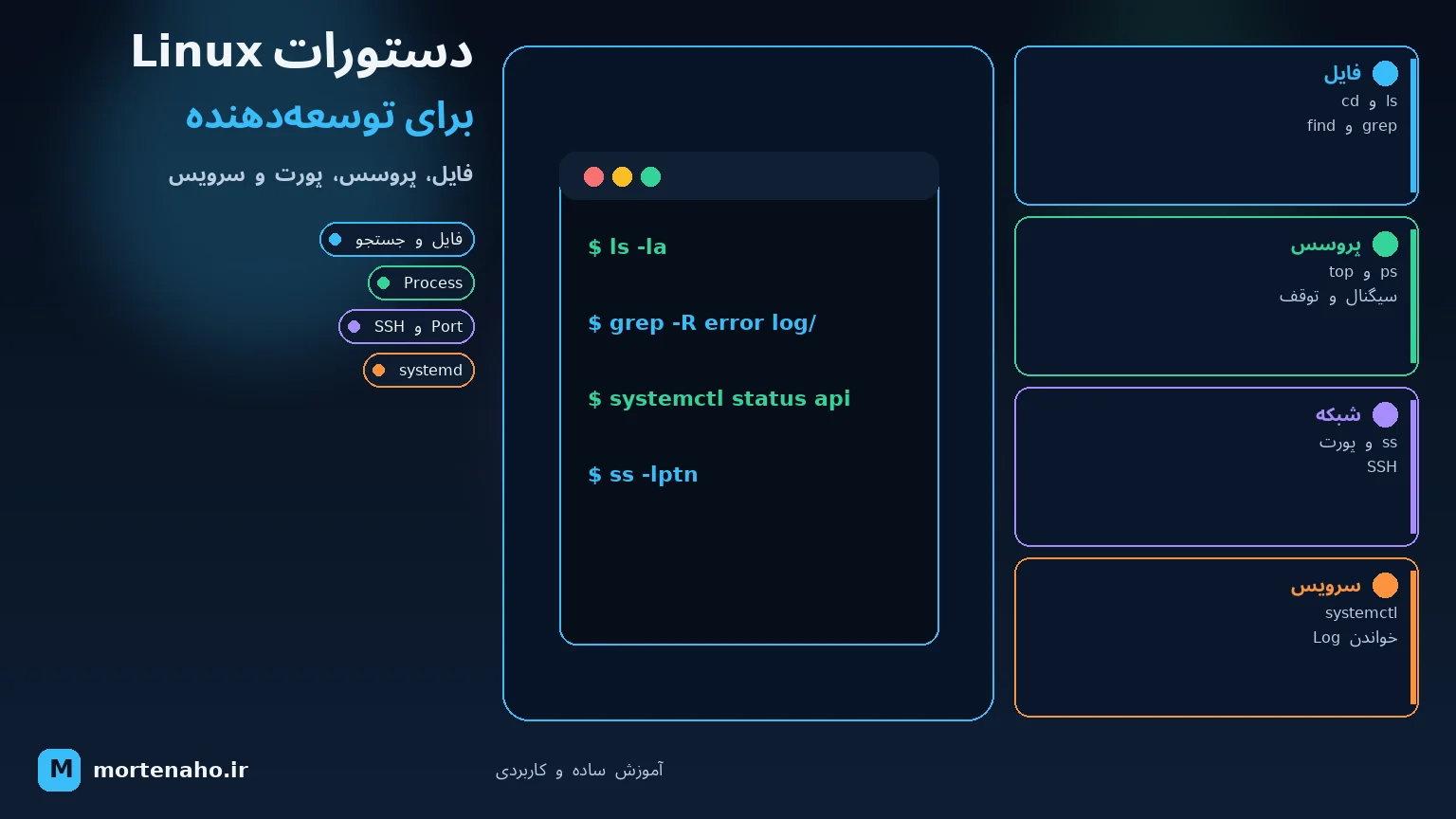
What you'll learn
You don't need to memorize hundreds of Linux commands. It's enough to know the core ones, learn how to read their documentation, and connect a few tools with pipes.
This article starts with navigating directories and goes all the way to searching logs, managing processes, checking ports, SSH, permissions, and troubleshooting a real service.
1. Before you start
Most examples in this tutorial run in Bash and apply to distributions like Ubuntu, Debian, Fedora, and Rocky Linux. Some options may differ slightly on macOS or other tool versions.
The general structure of most commands looks like this:
command [options] [arguments]

# Example
ls -lah /var/logcommand: the program name, such aslsoption: changes command behavior, such as-largument: command input, such as the path/var/log
Help for every command
man ls
ls --help
apropos "search files"
In the man page, use arrow keys to scroll, /word to search, and q to quit.
App.log and app.log are two different files.
2. Navigating paths and directories
pwd — where am I?
pwd
# /home/sara/projects/shop-api
ls — what files are here?
ls
ls -l       # show details
ls -a       # include hidden files
ls -lah     # details + hidden + human-readable sizes
ls -lt      # sort by modification time
cd — change directory
cd /var/log       # absolute path
cd src            # relative path
cd ..             # one level up
cd ~              # user home directory
cd -              # return to previous directory
An absolute path starts with /. A relative path is resolved from your current location. . means the current directory and .. means its parent.
Creating and removing directories
mkdir logs
mkdir -p src/api/controllers
rmdir empty-directory
The -p option also creates intermediate directories when needed. rmdir only removes empty directories.
3. Creating, copying, moving, and deleting files
touch app.log                    # create empty file or update its timestamp
cp appsettings.json backup.json # copy file
cp -a config/ config-backup/    # copy directory preserving metadata
mv old-name.txt new-name.txt    # rename
mv app.log logs/                # move
rm old-file.txt                 # delete file
rm -i important.txt # prompt before deletingrm usually don't go to the Recycle Bin. Commands like rm -rf — especially when run with sudo — can destroy important data in seconds. Before pressing Enter, double-check the path and variables.
Identifying file type and metadata
file publish/app
stat appsettings.json
realpath appsettings.jsonfiledetects the actual content type.statshows size, permissions, and timestamps.realpathprints the full resolved path.
4. Viewing file contents
cat appsettings.json         # good for short files
less large.log               # paginated viewing
head -n 20 app.log           # first 20 lines
tail -n 100 app.log          # last 100 lines
tail -f app.log              # follow new log lines
wc -l app.log                # line count
For large logs, use less; unlike cat, it doesn't dump the entire output onto the terminal at once. In less, press Shift+G to jump to the end.
# follow log and show errors only
tail -f app.log | grep --line-buffered -i "error"
5. Searching files and text
find — locating files
find . -type f -name "*.cs"
find ./logs -type f -mtime -1
find . -type f -size +100M
find . -type d -name "bin"
-type f: files only-type d: directories only-mtime -1: modified in the last 24 hours-size +100M: larger than 100 megabytes
grep and rg — finding text
grep -n "ConnectionString" appsettings.json
grep -RIn --exclude-dir=.git "TODO" .
grep -i "timeout" app.log

# ripgrep is faster and better for code repositories
rg "AddDbContext"
rg -t cs "CancellationToken"
rg -g "*.json" "localhost"
grep is installed almost everywhere. rg (Ripgrep) is usually faster, skips Git-ignored files, and offers a better experience for searching source code.
find; if you want text inside files, use grep or rg.
6. Pipes and redirects — the real power of the Terminal
The | character sends the output of the left command as input to the right command:
ps aux | grep dotnet
cat access.log | sort | uniq -c | sort -nr
du -h --max-depth=1 | sort -h
Redirects save output to a file:
dotnet build > build.log          # overwrite file
dotnet test >> test.log           # append to end of file
command 2> errors.log             # stderr only
command > all.log 2>&1           # stdout and stderr
dotnet test | tee test.log        # show output and save to file
> overwrites the previous file contents, while >> appends to the end.
Simple output processing
cut -d: -f1 /etc/passwd
sort names.txt
sort names.txt | uniq
awk '{print $1}' access.log
sed 's/http:/https:/g' urls.txt
Before editing important files with sed, preview the output in the terminal without the in-place edit option, and take a backup first.
7. Permissions, ownership, and sudo
The output of ls -l might look like this:
-rwxr-x--- 1 sara developers 2048 Jul 19 20:10 deploy.sh
The three permission groups apply to the owner, group, and others respectively. r is read, w is write, and x is execute.
chmod u+x deploy.sh          # grant execute permission to owner
chmod 640 appsettings.json   # owner rw, group r, others none
chmod 755 deploy.sh          # owner rwx, others r-x

chown sara:developers app.log
chown -R sara:developers ./logs

id
groups
sudo systemctl restart shop-apir=4, w=2, and x=1; for example, 7 means rwx and 5 means r-x.
chmod 777 as a quick fix for permission errors. First identify the owner, group, and minimum access needed. Use sudo only for the specific administrative command that requires it.
8. Viewing and managing processes
ps aux
ps -ef
pgrep -af dotnet
top
htop                 # if installed
uptime
To terminate a process:
kill 2481            # send SIGTERM; allow graceful shutdown
kill -TERM 2481
kill -KILL 2481      # force stop; last resort
pkill -f "dotnet Shop.Api.dll"SIGTERM first. SIGKILL gives the program no chance to flush logs, close connections, or clean up. Before using pkill, verify the pattern with pgrep -af.
Shell jobs
dotnet run &          # run in background
jobs

# Ctrl+Z temporarily suspends the current program
bg %1                 # resume job #1 in background
fg %1                 # bring it to foreground

nohup ./worker > worker.log 2>&1 &
For a real production service, use systemd, a container orchestrator, or an appropriate process manager instead of nohup.
9. Network, HTTP, and ports
ip addr                 # network addresses
ip route                # routes and default gateway
ss -lntp                # TCP ports listening
ss -lntp | grep :5000

ping -c 4 example.com
dig +short example.com
nc -vz example.com 443
Testing APIs with curl
curl -I https://example.com
curl -sS http://localhost:5000/health
curl -v http://localhost:5000/api/orders

curl -X POST http://localhost:5000/api/orders \
  -H "Content-Type: application/json" \
-d '{"productId":42,"quantity":2}'-I: response headers only-sS: minimal output, but show errors-v: connection and header details for debugging-L: follow redirects
To download a file:
curl -fLO https://example.com/app.tar.gz
wget https://example.com/app.tar.gzlocalhost inside that container refers to the container itself, not the host or another container.
10. Disk, memory, and system resources
df -h                       # filesystem space
du -sh ./logs               # size of one directory
du -h --max-depth=1 /var    # size of subdirectories
free -h                     # RAM and swap
lsblk -f                    # disks and mount points
uname -a                    # kernel and architecture
lscpu                       # CPU information
uptime                      # uptime and load average
When disk is full, first find the full filesystem with df -h, then use du to inspect large directories on that mount.
available value in free -h output is usually more important for decisions than free; Linux uses free RAM for cache and reclaims it when needed.
11. Managing services and viewing logs
On distributions that use systemd:
systemctl status shop-api
sudo systemctl start shop-api
sudo systemctl stop shop-api
sudo systemctl restart shop-api
sudo systemctl reload shop-api
sudo systemctl enable shop-api
systemctl is-active shop-api
systemctl is-enabled shop-api
restart runs the process from scratch. reload only works when the service supports reloading configuration.
journalctl — systemd logs
journalctl -u shop-api
journalctl -u shop-api -n 100
journalctl -u shop-api -f
journalctl -u shop-api --since "30 minutes ago"
journalctl -u shop-api -p err
journalctl -b                    # since last boot
For kernel messages:
dmesg --level=err,warn
journalctl -k -b
12. Installing and updating packages
First, identify your distribution:
cat /etc/os-releaseUbuntu and Debian
sudo apt update
sudo apt install ripgrep
apt search ripgrep
apt show ripgrep
sudo apt remove ripgrep
Fedora, modern RHEL, and Rocky Linux
sudo dnf check-update
sudo dnf install ripgrep
dnf search ripgrep
dnf info ripgrep
sudo dnf remove ripgrep
Arch Linux
sudo pacman -Syu
sudo pacman -S ripgrep
pacman -Ss ripgrep
sudo pacman -R ripgrep13. Compressing and extracting files
# create tar.gz
tar -czf release.tar.gz ./publish

# list contents without extracting
tar -tzf release.tar.gz

# extract
tar -xzf release.tar.gz

# extract to a specific path
tar -xzf release.tar.gz -C /opt/shop

# ZIP
zip -r source.zip ./src
unzip source.zip
unzip -l source.ziptar -tf or unzip -l, and open them in a temporary directory.
14. Environment variables, PATH, and shell
env
printenv ASPNETCORE_ENVIRONMENT
echo "$PATH"

export ASPNETCORE_ENVIRONMENT=Production
export ConnectionStrings__Default="..."

command -v dotnet
type -a dotnet
which dotnet
export only applies to the current shell and its children. For a permanent Bash user setting, add the value to ~/.bashrc and reload the file:
source ~/.bashrcHistory, aliases, and useful shortcuts
history
history | grep docker

alias ll='ls -lah'
alias gs='git status'
unalias gsCtrl+R: interactive history searchCtrl+C: interrupt the current programCtrl+L: clear the screenTab: complete command, file, or directory namesCtrl+AandCtrl+E: start and end of line
15. SSH and file transfer
Secure connection to a server
ssh deploy@server.example.com
ssh -p 2222 deploy@server.example.com
ssh -i ~/.ssh/id_ed25519 deploy@server.example.com
Creating an SSH key
ssh-keygen -t ed25519 -C "developer@example.com"
ssh-copy-id deploy@server.example.com
Set a strong passphrase on the private key, keep its permissions restricted, and never commit it to Git.
scp and rsync
# copy a file to the server
scp release.tar.gz deploy@server:/opt/releases/

# download a file from the server
scp deploy@server:/var/log/shop/app.log ./

# efficient directory sync
rsync -avz --progress ./publish/ deploy@server:/opt/shop/--delete option in rsync removes extra files at the destination. Preview the result first with --dry-run.
16. Real example: why won't the API start?
Suppose shop-api isn't responding. Instead of running random commands, work through it step by step:
Step 1: service status
systemctl status shop-api --no-pagerStep 2: recent logs
journalctl -u shop-api -n 100 --no-pager
journalctl -u shop-api --since "10 minutes ago" -p warning
Step 3: is the process running?
pgrep -af "Shop.Api"
ps aux | grep "[S]hop.Api"
Step 4: is the port open?
ss -lntp | grep :5000Step 5: local health check
curl -v http://127.0.0.1:5000/healthStep 6: check resources
df -h
free -h
top
Step 7: check DNS and external target
dig +short database.example.com
nc -vz database.example.com 543217. Quick command reference
| Need | Primary command |
|---|---|
| Current path | pwd |
| List files | ls -lah |
| Change directory | cd |
| Copy or move | cp, mv |
| Live log tail | tail -f |
| Find files | find |
| Search text | rg, grep |
| Permissions | chmod, chown |
| Processes | ps, pgrep, top, kill |
| Open ports | ss -lntp |
| HTTP test | curl |
| Disk space | df -h, du -sh |
| Memory | free -h |
| Services | systemctl |
| System logs | journalctl |
| Server connection | ssh |
| File transfer | scp, rsync |
Summary
- Instead of memorizing every option, learn to use
manand--help. - With
|, redirects,grep, andrg, you can analyze output quickly. - For troubleshooting, start with service status and logs, then check processes, ports, and resources.
- Think twice before
rm,chmod -R,chown -R,kill -KILL, andrsync --delete. - Practice commands first in a development environment or test path.
The best way to learn Linux is daily use and solving real problems in the Terminal.